Independent buying guidance • Practical product comparisons • Road-ready automotive advice

Choosing a dash cam memory card starts with your camera’s exact model. Check its supported capacity, required speed markings, and recommended card series before comparing prices. Then choose a suitable recording-endurance card, format it as instructed, and check that you can play back and export a recording.
This guide explains those decisions in order, with manufacturer examples and a recording-time calculation you can use when comparing storage sizes.
A dash cam memory card stores the video files your camera creates. Many consumer dash cams use microSD cards, so check the physical card type as well as its capacity. A full-size SD adapter may help connect a microSD card to a computer; it does not change the card’s recording specifications.
The camera needs storage that can keep up with its recording workload. An unsuitable card can cause recording errors or missing footage. A larger card provides more room, but capacity alone does not establish compatibility or reliability. Start with the camera’s requirements and compare products that meet them.
Find the model name on the camera or in its settings, then open the manufacturer’s manual or support page. Note the required card type, capacity range, speed markings, and any specifically recommended card series. Similar-looking cameras can have different requirements.
If the product listing and your camera’s instructions disagree, ask the camera manufacturer to confirm suitability before buying. Keep the exact card series and capacity in your question; a brand name alone is not enough.
Choose a capacity within your model’s supported range. A front-and-rear setup may generate more data than a front-only setup, while higher recording bitrates shorten the footage history available at a given capacity. Use your camera’s recording-time information or the calculation below to compare sizes.
There is no universal best size. For example, Nextbase’s 522GW support page specifies a 128GB maximum. A larger card would not be the appropriate upgrade under that guidance. See the 522GW requirements.
Speed-class symbols describe minimum sequential writing performance under defined standard conditions. Common markings include:
| Marking | Minimum write speed | Rating family |
|---|---|---|
| C10 / Class 10 | 10 MB/s | Speed Class |
| U1 | 10 MB/s | UHS Speed Class |
| U3 | 30 MB/s | UHS Speed Class |
| V10 | 10 MB/s | Video Speed Class |
| V30 | 30 MB/s | Video Speed Class |
Match the required rating family in your camera’s documentation. Equal numbers across different families do not establish compatibility. The SD Association explains the matching requirements.
UHS-I and UHS-II describe bus interfaces. They are different from U1 and U3 speed-class markings. A headline read-speed figure also does not tell you the card’s minimum sustained write performance. Check the actual recording requirements instead of buying by the largest speed number on the package.
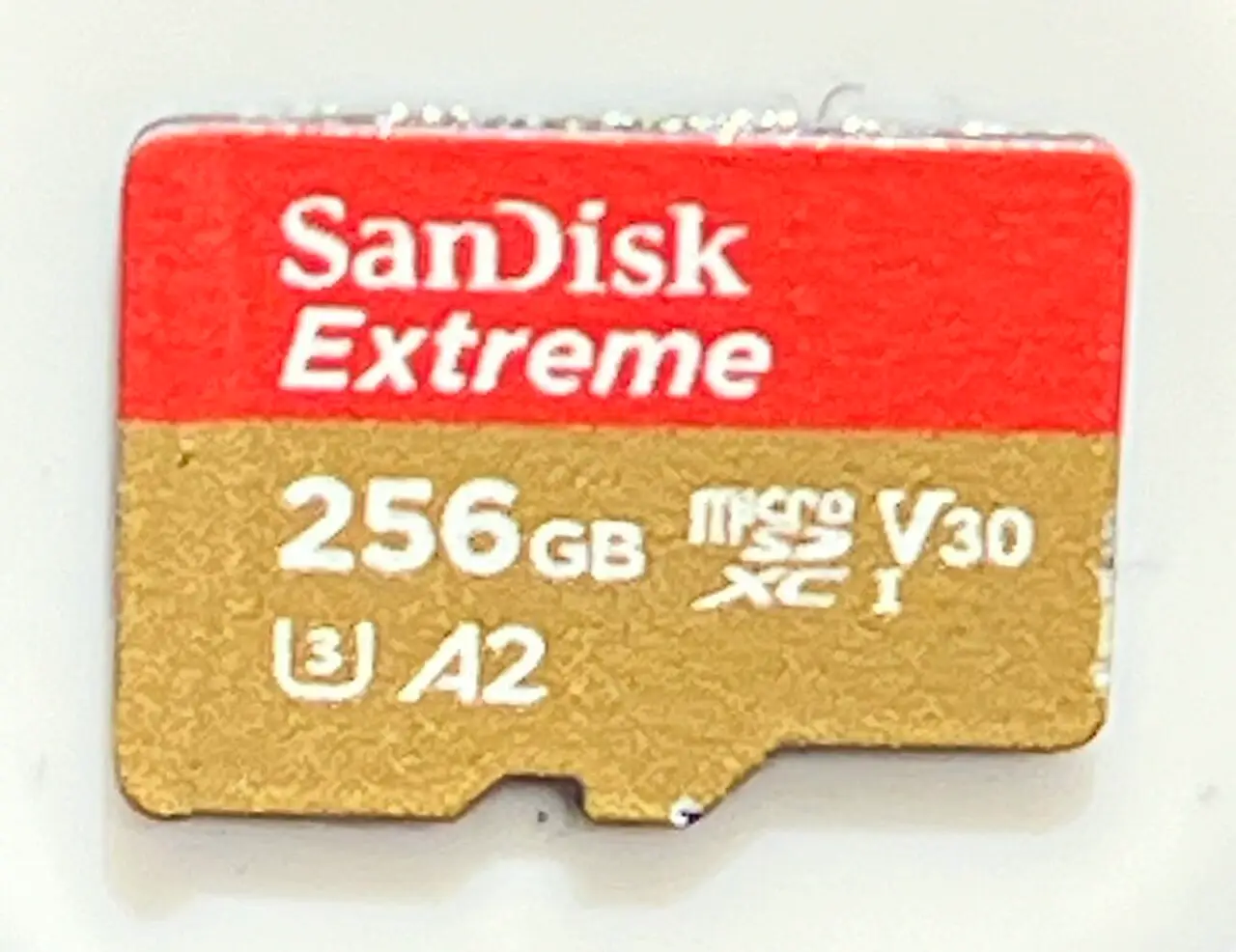
A microSD card’s capacity and speed markings. Check your camera’s recommended card series before buying. Photo: TaurusEmerald / Wikimedia Commons · CC BY-SA 4.0. Resized for web use.
These examples summarize manufacturer documentation checked on October 22, 2026. Recheck the guidance for your exact model before purchasing.
| Camera or manufacturer guidance | Published requirements or recommendations | Buying implication |
|---|---|---|
| Garmin Dash Cam 46/56/66W manual | microSDHC or microSDXC; Class 10 or higher; FAT32. The manual states a minimum capacity of 8GB. | Check Garmin’s current model-specific compatibility guidance for the upper capacity limit. Manual |
| Nextbase 522GW support page | Dash-cam/CCTV-compatible U3 microSD, 8GB–128GB; Nextbase recommends its own cards. | Keep the purchase within the stated capacity range. Support page |
| VIOFO’s general card recommendation | VIOFO original cards and SanDisk MAX Endurance cards. | Confirm the supported capacity separately for your VIOFO model. Card guidance |
Product names matter: SanDisk MAX Endurance and SanDisk High Endurance are different series. For a VIOFO purchase, follow the specific series named in VIOFO’s guidance. Recommendations for one manufacturer do not establish suitability for another camera.
A high endurance microSD card for dash cam use is designed for repeated recording and rewriting. Check the exact product’s intended use and specifications. A speed-class marking measures performance; it does not specify the card’s service life.
Endurance claims also need context. SanDisk’s MAX Endurance data sheet ties its recording-hour figures to particular capacities and Full HD recording, with lower total hours for 4K. Those figures describe cumulative recording endurance, rather than the footage stored at one time. They do not establish a guaranteed replacement date for your setup. See the manufacturer’s data sheet and conditions.
With loop recording, the camera creates new clips and reuses storage by replacing older, unprotected recordings. Garmin’s 46/56/66W manual, for example, explains that the camera deletes its oldest unsaved video when the card fills.
Learn how your model handles saved or event files. Export important footage promptly, including relevant footage from before and after an incident. A protected clip on the recording card still needs a separate backup.
Recording time depends on the amount of data written each second. Add the bitrates of all active video channels when estimating storage use. Resolution alone cannot tell you how many hours will fit.
For a constant total video bitrate, a theoretical estimate is:
Hours ≈ advertised capacity in GB × 8,000 ÷ (total video bitrate in Mbps × 3,600)
| Advertised capacity | 20 Mbps total video | 40 Mbps total video |
|---|---|---|
| 64GB | About 7.1 hours | About 3.6 hours |
| 128GB | About 14.2 hours | About 7.1 hours |
These are calculated video-only examples using decimal gigabytes, not measured camera results. Usable space, audio, metadata, protected-file allocation, and variable bitrate affect actual recording time. Use your camera’s own estimates when available.
Copy important recordings to another device or storage location using your camera’s supported transfer method. Open the copied files to confirm that the backup works. Include recordings from each relevant camera channel.
Formatting erases the card’s contents, including footage you intended to keep. Complete the backup before confirming a format operation.
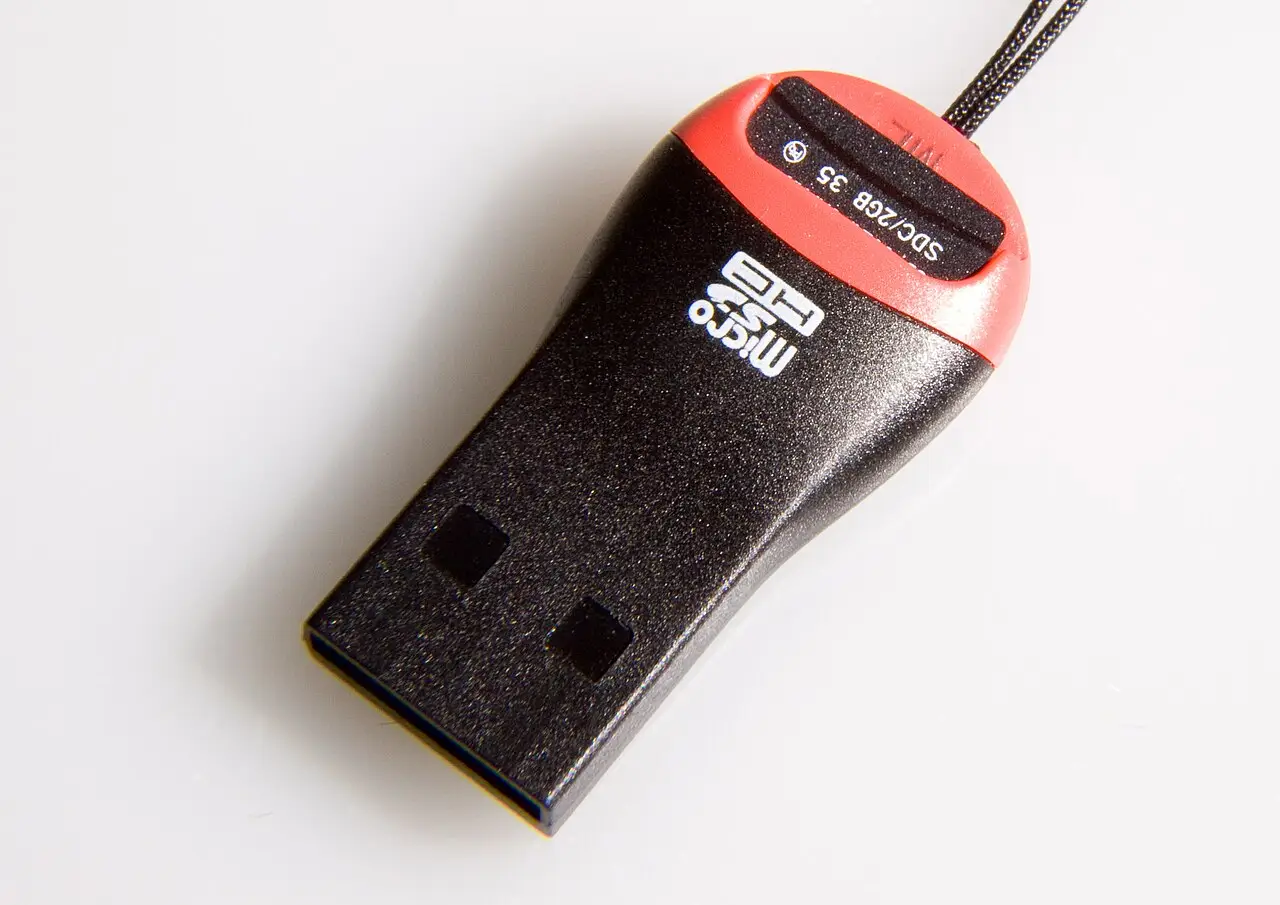
A microSD card inserted in a card reader for accessing and backing up files. Photo: Leafnode / Wikimedia Commons · CC BY-SA 3.0. Resized for web use.
Menu names and file-system requirements vary. Follow the model’s instructions, including any specified computer-formatting procedure, rather than applying one FAT32 or exFAT rule to every dash cam. VIOFO’s formatting guide directs owners to their individual camera’s support instructions.
Watch: Insert and Format a Dash Cam Memory Card
Official demonstration by VIOFO Dash Cam Official. Back up important footage first and follow the instructions for your exact camera model. Watch the original video on YouTube.
After setup, record a short test while safely parked, then check that a new file exists. Play it from beginning to end, confirm the date and time, and check each connected camera channel. Export a clip and open the saved copy on another device.
A stuttering file alone does not prove card failure; playback software or the viewing device can also affect playback. If errors persist, follow the camera manufacturer’s troubleshooting steps, compare with another approved card, or contact support.
When comparing Amazon or other retailer listings, match the full series name, capacity, and model number to the manufacturer’s product information. Customer ratings can add context, but they do not verify compatibility with your camera.
Follow the maintenance interval and format reminders applicable to your camera model. Back up important footage first and investigate recurring recording errors. Formatting should not replace the manufacturer’s troubleshooting process.
Follow any model-specific replacement guidance. Persistent write errors, missing clips, or failed recordings need investigation and may justify replacing the card after troubleshooting. A universal one- or two-year schedule does not account for different cards and recording workloads.
No. The physical type, supported capacity, speed requirements, and recommended product series all matter. Check the exact camera and card combination before buying or reusing a card.
Choose a dash cam memory card by matching your camera’s requirements first, then comparing endurance, recording capacity, and purchase terms. Finish the job with a format and playback check, and keep important footage backed up. For help choosing the camera itself, read our dash cam buying guide.