Independent buying guidance • Practical product comparisons • Road-ready automotive advice

The Garmin dash cam app is Garmin Drive. Use it to pair a compatible camera, change settings, review recordings and save clips to your phone. Bluetooth handles pairing, while the camera's own Wi-Fi connection handles nearby video viewing and transfer. Remote viewing and online Vault storage have separate model and subscription requirements.
This guide covers Android and iPhone, with specific pairing instructions for the Garmin Dash Cam Mini 3, X310 and LIVE. Start with the task you need to complete. A camera that pairs successfully can still have a video-transfer problem, and a working local connection does not confirm remote access is ready.
Instructions and source links checked on October 12, 2026. App screens can change with updates.
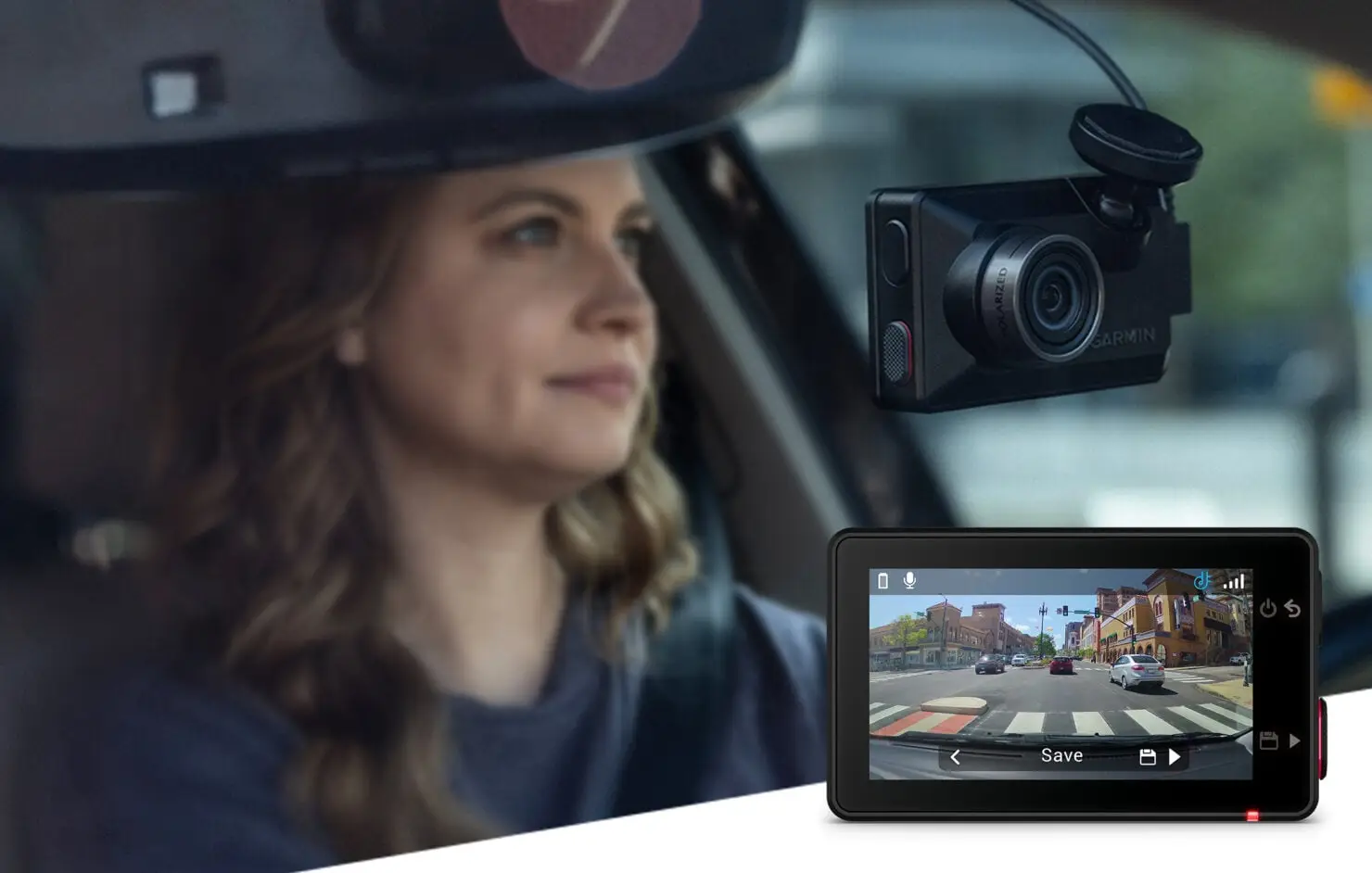
Garmin Dash Cam X series in an official Garmin product image. Compatible cameras use Garmin Drive for phone pairing and footage access. Image: Garmin.
Official downloads: Garmin Drive for Android · Garmin Drive for iPhone
Find Garmin Drive in your phone's app store and check that the developer is Garmin. The listings include navigation features because the same app also supports Garmin navigators. For a dash cam, choose the camera setup option inside the app.
Use the current store listing to check phone compatibility. At the time of checking, the US iPhone listing requires iOS 16.5 or later. Android availability depends on the device and current app release. If the store reports incompatibility, resolve that before attempting camera pairing.
Some older Garmin cameras use a different companion app. Check your exact model's manual if Garmin Drive is not named there. Installing Garmin Connect or a navigation-only app will not substitute for the dash cam workflow.
Garmin Drive uses more than one connection. Identify the stage that is failing before changing settings or buying a subscription.
| Task | Connection | Subscription |
|---|---|---|
| Pair a nearby camera | Bluetooth and Garmin Drive | No Vault or LTE plan for pairing |
| Review or export nearby footage | Phone joins the camera's private Wi-Fi | No cloud plan for local transfer |
| Open an exported phone copy | Phone's photo or video library | No Garmin plan |
| Use Mini 3 or X-series remote features | Powered camera on internet Wi-Fi | Paid Vault subscription |
| Use LIVE over cellular | Powered LIVE camera with LTE coverage | Active LTE subscription |
The private camera network does not supply internet. A phone message about having no internet can therefore be normal during local transfer. Stay connected to the camera when Garmin Drive requests it. An internet connection is needed for account services and cloud tasks.
Park before setup. Insert a suitable microSD card and use the supplied vehicle power adapter and cable. Garmin's pairing support warns that a computer USB connection may not provide the power needed for pairing. Keep the phone within 10 feet, or 3 meters, of the camera.
Begin inside Garmin Drive. A camera appearing in the phone's Bluetooth list does not prove that app setup has finished.
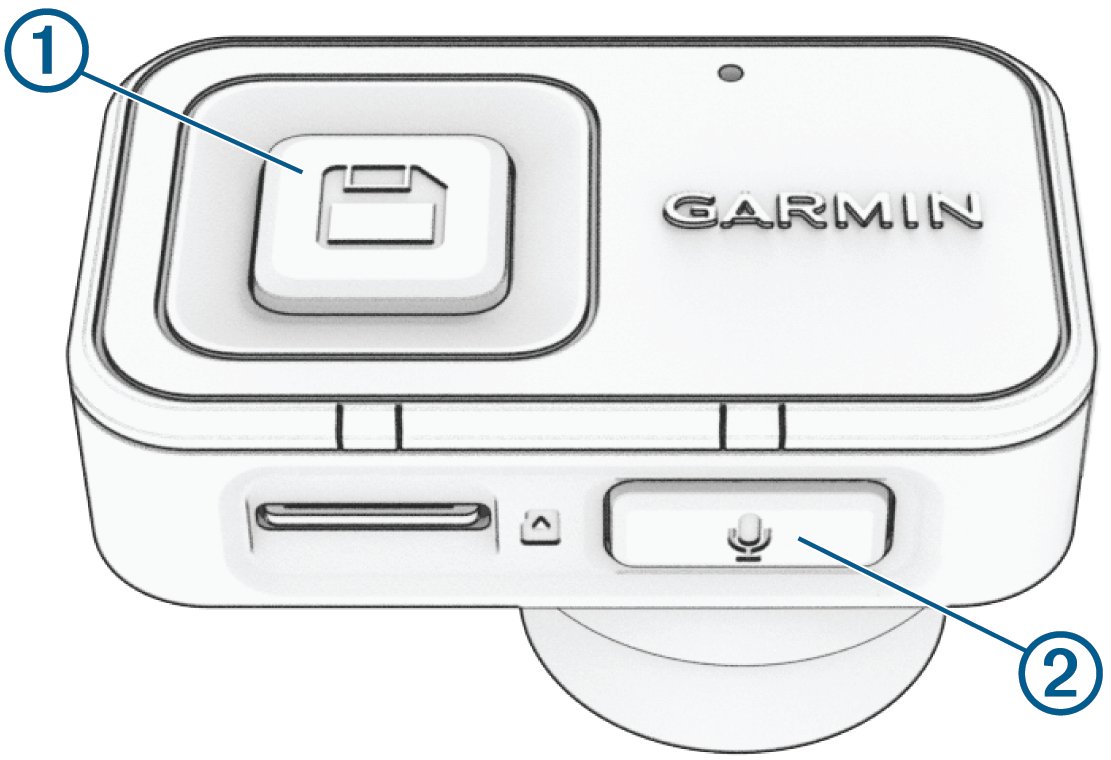
Button layout illustration from Garmin’s Mini 3 owner’s manual.
The Mini 3 has no display menu to swipe through. Its pairing control is the Save button. Once setup is complete, the camera and phone reconnect when powered on and within range. Follow Garmin's Mini 3 pairing instructions for the complete workflow.
These steps follow Garmin's X310 pairing instructions. Owners of the X110, X210 or other models should follow the instructions shown for their own camera, rather than assume the X310 menu is identical.
Pairing is separate from LTE activation. You can complete the phone connection before deciding whether you need a paid cellular plan for remote features. For plan details, see our Garmin Dash Cam LIVE review and subscription guide.
With the camera paired and powered, open its video gallery in Garmin Drive. The Mini 3 manual calls this Review Video. Choose Saved for protected clips or Temporary for recent footage that has not been saved. Accept the camera Wi-Fi connection prompt if one appears.
Temporary footage is not a permanent archive. In the Mini 3 settings, Delete When Full removes the oldest unsaved footage as space fills. Promptly Delete removes unsaved footage older than three minutes and clears unsaved clips when the camera powers off. Check this setting if recent recordings seem to disappear.
On the Mini 3, a press of the Save button preserves footage around the event. The camera also saves detected incidents automatically by default. Export an important clip promptly because the memory card still has limited capacity. For another model, use its own save control.
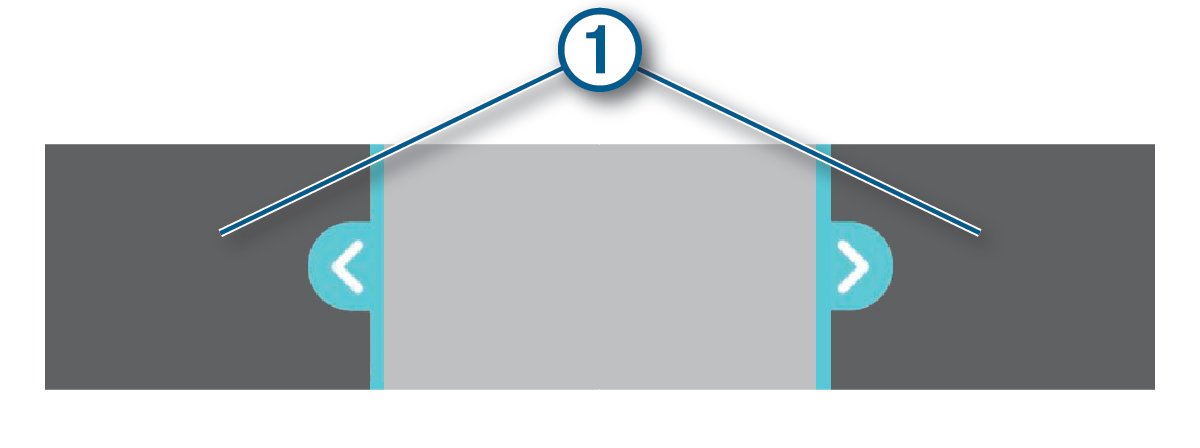
Trimming timeline illustration from Garmin’s export instructions. Screen labels can vary with the model and app version.
Garmin says an export can take several minutes, depending on clip length. A thumbnail or completed preview is not the same as a downloaded phone copy. Keep the camera powered and the phone nearby while the file transfers.
Local sharing uses the phone's normal share options once the export is saved. Vault sharing uses an online link and is a separate service. Saved cloud videos cannot be trimmed in the Mini 3 manual's Vault workflow, so make your trim before upload.
If the phone transfer remains unreliable, preserve the recording through a computer. Shut the camera down before removing its card, then use a card reader. The Mini 3 stores MP4 files under DCIM, with incident, manually saved and unsaved clips in separate folders.
Copy the original file first and edit a duplicate. The Mini 3 folders include 100EVENT for incidents, 102SAVED for manual saves and 104UNSVD for unsaved footage. Promptly Delete affects whether unsaved files remain available.
Garmin Drive supports Dash Cam Auto Sync for up to four compatible dash cams. Each camera still needs its own power and recording setup. Pairing several cameras does not turn the app into a continuous recorder on your phone. If you are also choosing a camera setup, our multi-camera dash cam comparison covers coverage, power and storage needs.
For a picture-in-picture clip, at least two cameras must have recorded at the same time. In the Mini 3 workflow, open Review Video and choose a thumbnail with multiple camera icons. Select the full-screen view, trim the clip, then choose Continue. Pick the inset camera and its corner position before Export. Keep the app open until export completes.
If a GPS-connected camera is included, Garmin's network instructions allow location data to be added to saved videos from the network. Check the actual camera combination before expecting that information in every clip.
Phone brands use different labels. Search Android Settings for Garmin Drive if the route does not match your phone. Recheck permissions after an update or a long period without using the app. Google's Android app-permission instructions explain where to review these settings.
Notifications are not required for general app use, according to Garmin's pairing instructions. Enable them if you want supported alerts. Allow cellular data when using the app's internet services away from Wi-Fi.
Installing Garmin Drive does not activate every connected feature. Pairing, nearby camera controls and local video transfer are basic camera tasks. Vault stores selected footage online, while remote access connects to a camera when you are away from it.
| Camera or task | What you need | Plan requirement |
|---|---|---|
| Mini 3 and X110 X210 X310 local use | Nearby phone and camera Wi-Fi | No Vault plan for local review and export |
| Mini 3 and X-series remote Wi-Fi use | Camera stays powered on internet Wi-Fi | Paid Vault plan |
| LIVE remote view over Wi-Fi | Powered camera on internet Wi-Fi | Check the LIVE-specific feature terms |
| LIVE remote LTE functions | Power, coverage and activated LTE service | Active LTE plan |
| Older compatible cameras | Model-specific cloud and remote setup | Terms vary by model |
For the X310, the documented Vault subscription path is to select the device in Garmin Drive, then Settings, Vault Storage and Choose a Plan. For internet Wi-Fi setup, open the settings gear, choose the vehicle and camera, then Wi-Fi Connections. Select the network and enter its password.
A Wi-Fi network used for the X310 must let connected devices see and communicate with one another. A restricted guest network can therefore be a poor choice. Successful Bluetooth pairing does not test the router connection.
The LIVE camera has a built-in LTE modem. Garmin identifies an active LTE subscription as a requirement for cellular connected functions, including vehicle location and theft alerts. Some vehicles need a suitable constant-power accessory for parked use. Check the current plan shown in your app for price, storage duration and availability.
Cloud storage covers saved or exported clips according to the enabled settings. Do not assume the entire loop-recording card is automatically backed up. Garmin's Vault Access settings can control uploads for each compatible camera and for exported clips.
On supported display models, Reconnecting or Add Another Phone can mean the camera remembers a previous phone. Use the additional-phone option shown for that model. iPhone users may also be asked to choose the camera under Select an Accessory.
Treat this as a Wi-Fi stage problem first. Enable Wi-Fi, accept the app's camera-network prompt and check iPhone Local Network access. Only one phone can use the camera's internal Wi-Fi for viewing or updates at a time. Follow Garmin's Wi-Fi and Live View troubleshooting checklist if the gallery still will not open.
Temporarily disconnect wireless CarPlay or Android Auto while you are parked. Garmin says their vehicle Wi-Fi connection can compete with the dash cam's private network. If Garmin Drive identifies a VPN or ad blocker as the interruption, allow local app traffic or pause that service for the transfer, then restore it.
Toggle the phone's Wi-Fi off and on, then restart the camera if needed. Test with a single short clip before changing the pairing again.
Leave Garmin Drive in the foreground and keep both devices close and powered. Wait for the export to finish, then use Save to Phone if offered. Check the phone's available storage and any media-save permission prompt. Try a shorter trim as a practical way to test the transfer.
If the recording is important and exports keep failing, use a card reader to copy the original MP4. Preserve the footage before reinstalling the app, resetting the camera or formatting its card.
Check the selected camera, date and Saved or Temporary category. Review the camera's unsaved-video retention setting. A clip removed by loop recording or Promptly Delete will not reappear simply because Bluetooth pairing is repaired.
A nearby transfer proves the local connection works. It does not prove that parked power, internet Wi-Fi or LTE service is available. Troubleshoot those requirements individually.
The problem may involve the card or recording itself. Copy any readable important files, then check the camera's supported card specification and follow its manual for card troubleshooting. Formatting deletes the footage on the card, so it should come after preservation, not at the start of app troubleshooting.
Use Garmin Drive for compatible models, including the Mini 3, X310 and LIVE. Check the manual for an older camera because its companion app may differ.
Garmin Drive is free to download. Local pairing and phone exports are separate from paid cloud services. Mini 3 and X-series remote Wi-Fi and Vault features require a subscription, while LIVE cellular functions require active LTE service.
Nearby review uses the camera's private Wi-Fi link and does not need that link to provide internet. Cloud uploads and remote internet access require their own working internet connection.
Bluetooth pairing and video transfer use different connection stages. Check the camera Wi-Fi connection, app permissions and any competing wireless vehicle connection before repeating pairing.
Yes. Garmin Drive supports Auto Sync for up to four compatible dash cams. Two cameras with matching recording times can supply a picture-in-picture clip.
A new plan does not recreate a recording that has already been removed from the card. Check whether a saved copy was previously uploaded to Vault or exported to another device. Export important footage before unsaved-video retention removes it.
Check the model and operation. The Mini 3 manual says recording and alerts stop while reviewing stored videos. That differs from Garmin's local Live View guidance, which lists the Mini 3 among models that continue recording during Live View. Review footage while parked and confirm normal recording has resumed afterward.